> For the complete documentation index, see [llms.txt](https://docs.nalpeiron.com/llms.txt). Markdown versions of documentation pages are available by appending `.md` to page URLs; this page is available as [Markdown](https://docs.nalpeiron.com/zentitle2-docs/ui-product-catalog/products/add-a-product/product-step-2-features/feature-control.md).
# Add a Feature
Add a feature to a product by choosing its control type, such as usage with a limit, on/off, burn-down, metered with no limit, or shared element pool, and setting its parameters.
A “Feature” in the Zentitle context is a boolean flag that determines whether a given feature/module/component should be enabled or not for a given user. Features can also be "tracked" based on usage and even tracked for "over-usage" ([overdraft tracker](/zentitle2-docs/ui-product-catalog/products/add-a-product/product-step-2-features/overdraft-option-feature-usage.md)), so that your sales team can upsell your customers.
{% hint style="info" %}
Features can be added at the "product" level or as "global features" across all your products. In this example, we are adding them at the product level, but for speed, if you use the same features (and attributes) across the product line, it's faster to start at the [global features section](/zentitle2-docs/ui-product-catalog/global-features-and-attributes.md).
{% endhint %}
### Adding Features
{% hint style="danger" %}
To set the "reset" timing for any usage, you must do so at the offering level, NOT here when adding a feature.
All usage features within an Offering share the same reset period to ensure consistency. **You can set this reset period on the Offering setup page.**
{% endhint %}
 Navigate to the "products" section on the left-hand navigation. Then, edit a product and select the "features" option.
* Then, Click 'Add Feature'.
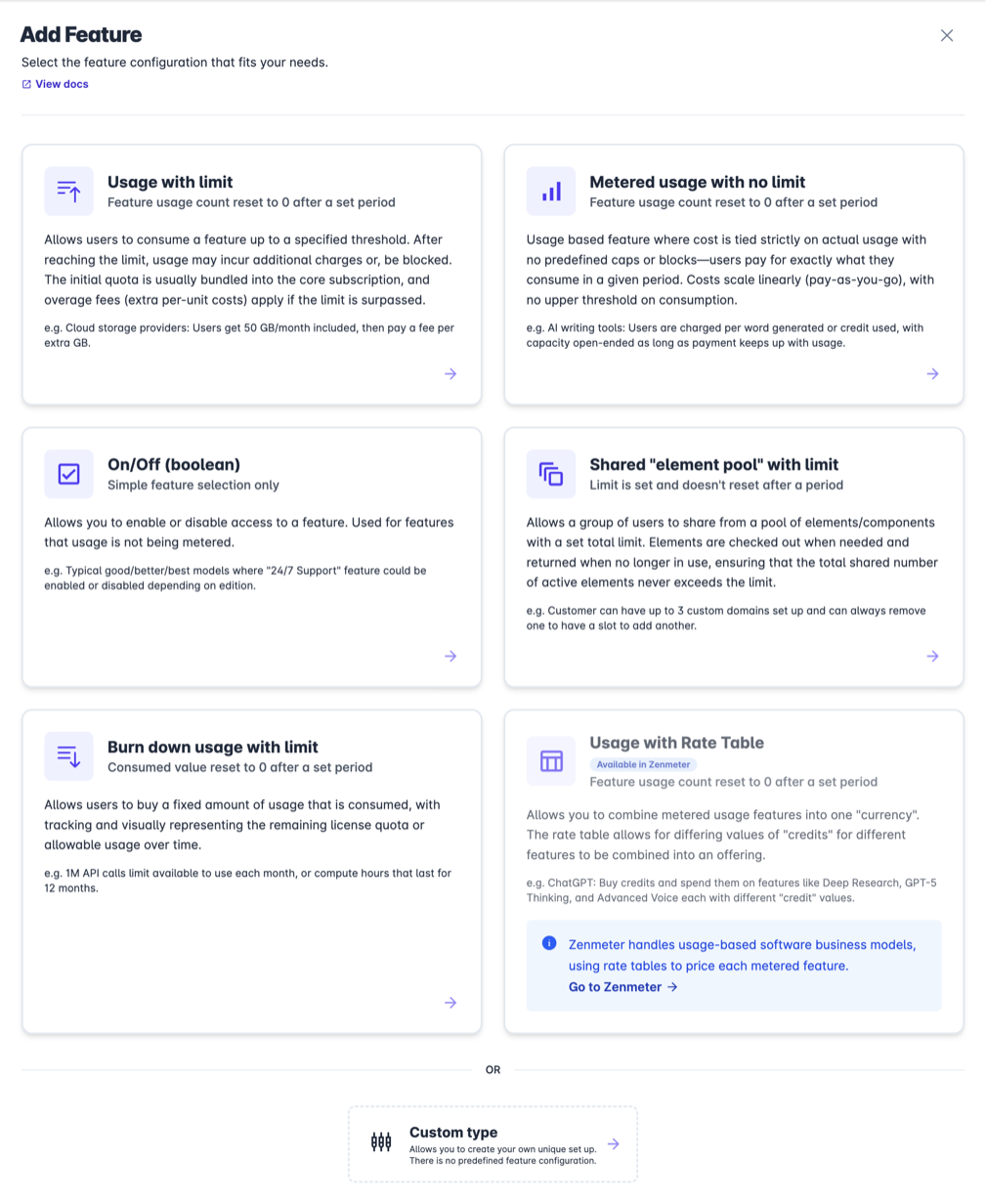
 Pick the "type" of business model for the new feature.
{% hint style="info" %}
Each option is explained in the box so you can choose the most relevant one for your use case - or pick the "custom" type option for a more straightforward UI.
{% endhint %}
#### Usage with limit
Feature usage count resets to 0 after a set period. Allows users to consume a feature up to a specified threshold. After reaching the limit, usage may incur additional charges or, be blocked. The initial quota is usually included in the core subscription, and overage fees (extra per-unit charges) apply if the limit is exceeded.
*e.g., Cloud storage providers: Users get 50 GB/month included, then pay a fee per extra GB.*
#### On/Off (boolean)
Simple feature selection only. Allows you to enable or disable access to a feature. Used for features where usage is not being metered.
*e.g., Typical good/better/best models where the "24/7 Support" feature could be enabled or disabled depending on the edition.*
#### Burn down usage with a limit
Consumed value is reset to 0 after a set period. Allows users to buy a fixed amount of usage that is consumed, with tracking and visual representation of the remaining license quota or allowable usage over time.
*e.g., 1M API calls limit available to use each month, or compute hours that last for 12 months.*
#### Metered usage with no limit
Feature usage count resets to 0 after a set period. Usage-based feature where cost is tied strictly to actual usage with no predefined caps or blocks—users pay for exactly what they consume in a given period. Costs scale linearly (pay-as-you-go), with no upper threshold on consumption.
*e.g., Al writing tools: Users are charged per word generated or credit used, with capacity open-ended as long as payment keeps up with usage.*
#### Shared "element pool" with a limit
The limit is set and doesn't reset after a period. Allows a group of users to share from a pool of elements/components with a set total limit. Elements are checked out when needed and returned when no longer in use, ensuring that the total shared number of active elements never exceeds the limit.
*e.g., Customer can have up to 3 custom domains set up and can always remove one to have a slot to add another.*
#### Usage with rate table
This option appears with an **Available in Zenmeter** badge and can't be selected for Zentitle2 products. Zenmeter uses rate tables to price metered features in credits. See [Credits and Rate Tables](https://docs.nalpeiron.com/zenmeter-docs/zenmeter-concepts/credits-and-tokens) in the Zenmeter docs.
#### Custom
All three types in a simple UI.
***
* Start by selecting a box/option that's best for your application.
* In this case, we will pick "Usage with limit."
 Set the feature parameters.
* Name the new feature, something helpful to reference later. (Name will also be used as a feature key for API integration. Name (key) has to be unique, up to 50 characters.)
* Add a description as required.
* Now choose if this feature has a "hard" or "soft" limit. In this example, we are showing a hard limit of 111.
{% hint style="success" %}
The hard limit allows users to consume a feature up to a specified limit; once that limit is reached, usage will be blocked.
The soft limit (overdraft limit) allows users to use a feature above the limit.
Usage will be seen as overdraft and may incur additional charges (extra-per-unit costs).
The new total after which usage could be blocked will be equal to the **Limit value + the Overdraft limit.**
{% endhint %}
#### For developers: A helpful dialog box showing the API details is at the base of the page (see above).
{% hint style="danger" %}
To set the "reset" timing for any usage, you must do so at the offering level, NOT here when adding a feature.
All usage features within an Offering share the same reset period to ensure consistency. **You can set this reset period on the Offering setup page.**
{% endhint %}
* Now, click Save to add this feature, or "save and add more" if you want to keep adding features.
#### Adding many features at once
Often, you will want to add a alot of features in a batch. In that case, use the “Save and add more” button instead of the simple save button. This allows you to quickly add your features one after the other, rather than leaving the process. **It will repeat the same feature type you previously chose.**
***
Once saved, you will return to the product feature list.
You can easily edit the feature (or the others) by clicking the "edit" button on the right-hand side.
***
#### Example with "soft" limit set
* As you can see above, now we have selected the "soft" limit option.
* This opens a new drop-down set of options where you can add the additional usage, expressed as:
* none - no overdraft
* absolute - a specific number for the additional limit value
* percentage - a % of the previously set value, here we used 10% additional uses.
* unlimited - no limit, here we will just track but not block usage
Below, we can now see the overdraft shown as a total of the options chosen - this simply shows you precisely the total usage allowed before blocking. In this example, 122 uses.
* Click save.
***
There are multiple other options for setting up your features, each with slight differences. This allows you to set up a highly flexible go-to marketing strategy and mix and match features across different model types.
Each function is similar; they just have a few different options, as explained in the option dialog box.
***
### Using the "Custom" option
On the same add feature page, scroll to the booton and choose "Custom type"
{% hint style="info" %}
Definitions for feature type:
* Access Control - Is this feature available in this product and enabled (by default) or not?
* Usage Count - Is this feature tracked based on usage, and is the "overdraft" option enabled?
* Element Pool - Is this feature tracked as part of this product's "pool" of usage and is the "overdraft" option enabled?
{% endhint %}
#### Access Control
* Pick the "type" of feature: Access Control
* Then, set the default value to enabled or disabled.
* Click Save.
***
#### Usage Count
* Pick the "type" of feature: Usage Count
* Then, select the "value" for the usage tracking.
* Is the value limited to a specific value or unlimited? Select the required option and set any values for this feature. This example sets the feature usage tracking limit to 100 uses.
* Then, if you have "overdrafts" enabled using a soft limit, you can set the overdraft tracking feature to allow additional usage over the "sold" amount. You can track how much overuse you wish to allow, either an absolute extra amount, a percentage, or an unlimited amount over the standard set value for this feature. **See above for more details on how to use soft limits.**
{% hint style="info" %}
Overdrafts are a great way to allow clients to consume more than they paid for for upsell/cross-sell purposes. [See the "overdrafts" description for more details](/zentitle2-docs/premium-features/overdraft-tracker-basic.md).
{% endhint %}
{% hint style="warning" %}
If the feature "value" is set to "unlimited", you will not be able to define "Overdraft limit" for it. Overdraft can be used only for features with a value limited to a specific set limit.
{% endhint %}
* Click Save.
***
#### Element Pool
{% hint style="info" %}
[Element pools explained](https://docs.nalpeiron.com/education-and-training/licensing-education/learn-about-software-licensing-models/element-pools-software-licensing#how-element-pools-licensing-works): they enable control over specific resources (“elements”) across multiple software instances, in a pool, ensuring optimal utilization and fair distribution.
{% endhint %}
* Pick the "type" of feature: Element Pool.
* Then, select the "value" for the pool usage tracking. In this example, a pool of 100.
* Then, if you have "overdrafts" enabled using a soft limit, you can set the overdraft tracking feature to allow additional usage over the "sold" amount. You can track how much overuse you wish to allow, either an absolute extra amount, a percentage, or an unlimited amount over the standard set value for this feature. **See above for more details on how to use soft limits.**
* Click Save.
***
 Repeat for any other features you have across your product editions.
***
### Deleting features
 To delete a feature, pick one from the list.
 Pick the 'three dots' icon on the top right.
 Select 'Delete feature.'
 Confirm you wish to delete when prompted for confirmation.
{% hint style="danger" %}
Any form of deletion **CAN NOT BE UNDONE. BE VERY CAREFUL WHEN DELETING.**
{% endhint %}
***
### Deleting Global Features
{% hint style="info" %}
**If the feature is part of the "Global feature" list, you will not be able to delete it here; you will need to do so in the global features section.**
{% endhint %}
#### Next, you can add product attributes to the standard product if required.
---
# Agent Instructions
This documentation is published with GitBook. GitBook is the documentation platform designed so that both humans and AI agents can read, navigate, and reason over technical content effectively. Learn more at gitbook.com.
## Querying This Documentation
If you need additional information that is not directly available in this page, you can query the documentation by asking a question.
Perform an HTTP GET request on the following URL with the `ask` and `goal` query parameters:
```
GET https://docs.nalpeiron.com/zentitle2-docs/ui-product-catalog/products/add-a-product/product-step-2-features/feature-control.md?ask=&goal=
```
`ask` is the immediate question: it should be specific, self-contained, and written in natural language.
`goal` is what the user is ultimately trying to achieve, the reason they need the answer. Sharing it helps GitBook give you a better, more relevant answer. A goal is most helpful when it describes the outcome the user wants rather than restating the question. For example, with `ask=how do I create an API token`, a goal like `automate deployments from our CI pipeline` lets GitBook tailor the answer to that use case.
The response will contain a direct answer to the question and relevant excerpts and sources from the documentation.
Use this mechanism when the answer is not explicitly present in the current page, you need clarification or additional context, or you want to retrieve related documentation sections.